
Turning a code sample into an image sounds simple until the image needs to look like the code inside Visual Studio.
Copying text into a design tool loses editor colors and formatting. Taking a normal screen capture includes tabs, margins, toolbars, and whatever else happens to be visible. It also leaves no convenient way to emphasize an expression or cover a value before sharing the image.
CodeShot addresses that workflow inside Visual Studio. It takes inspiration from CodeSnap, but its implementation is shaped by the Visual Studio editor and shell.
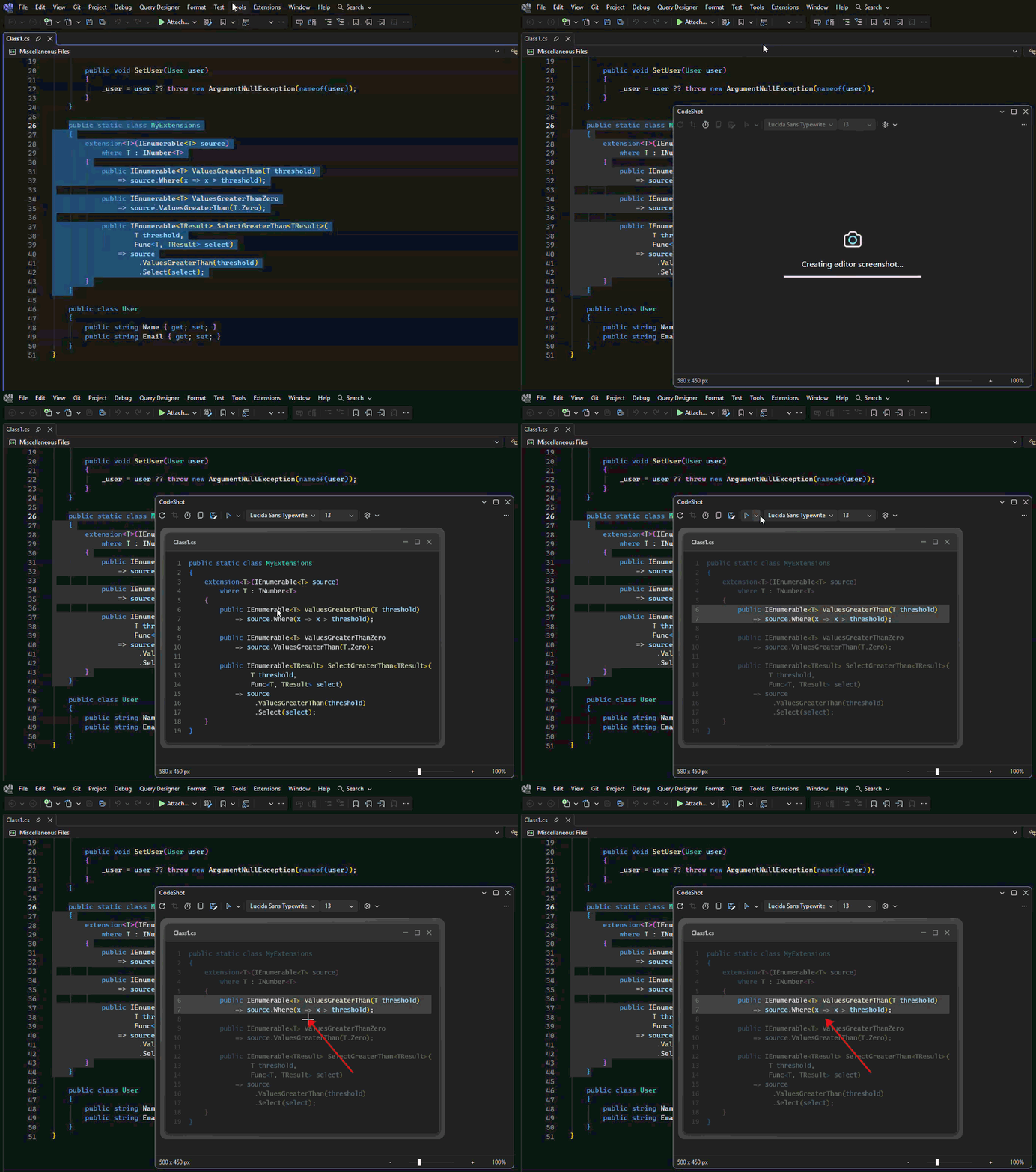
Rebuilding the editor instead of photographing it
The basic workflow starts with an editor selection. CodeShot opens a tool window, creates a preview using the current syntax colors, and immediately copies the initial image. The preview can add line numbers, a title bar, backgrounds, padding, shadows, and a configurable export scale.
The important implementation detail is that the editor screenshot is not a bitmap of the editor. CodeShot reconstructs the selected text as WPF content.
It obtains the active IVsTextView through IVsTextManager, converts it to an IWpfTextView with IVsEditorAdaptersFactoryService, and reads the selected SnapshotSpan values. Common indentation can then be removed without changing the underlying document.
Syntax colors come from two MEF services:
IViewClassifierAggregatorServicesupplies the classification spans.IClassificationFormatMapServicemaps each classification type to the colors currently used by the editor.
Rather than asking the classifier about every line, CodeShot classifies the enclosing selection once. It then walks the ordered spans and slices them into WPF Run elements for each selected line. Unclassified gaps use the editor's default foreground, while classifications can contribute their own foreground and background brushes.
This approach has two useful properties. The result follows the active Visual Studio color settings, and the capture surface can be laid out independently of the editor viewport. Long selections are not clipped just because the tool window is small.
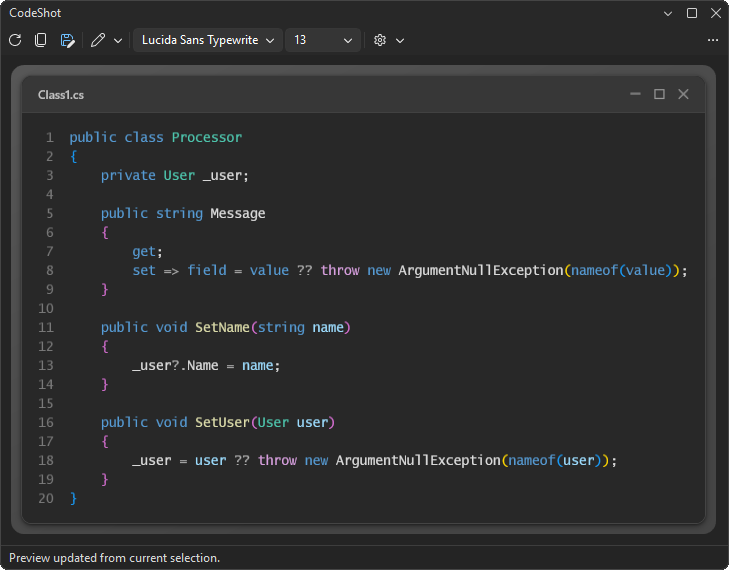
Rendering at an explicit scale
The completed WPF surface is rendered through a VisualBrush into a RenderTargetBitmap. Export scale is explicit instead of being derived from monitor DPI. That makes the same selection produce the same pixel dimensions on different displays.
There are practical limits around this step. CodeShot rejects dimensions above 16,384 pixels and caps the total pixel count before allocating the render target. The resulting BitmapSource is frozen before it crosses thread boundaries.
The clipboard also needs more care than a call to Clipboard.SetImage. Some paste targets discard alpha from the normal WPF bitmap format, so CodeShot places both the compatibility bitmap and an encoded PNG on the clipboard. The clipboard data is copied rather than referenced, allowing the image to remain available after Visual Studio closes.
There is an optional plain-text clipboard representation too. That keeps code searchable when an application prefers text over images. If the screenshot contains a redaction, CodeShot deliberately omits the original text so the clipboard cannot reveal what the PNG hides.
Annotations are part of the capture surface
Annotations are ordinary WPF elements layered over the preview. Rectangles, arrows, expression highlights, text notes, and opaque redactions share a controller responsible for drawing, selection, moving, resizing, and erasing.
Crop operations and annotations use the same bounded edit-history model. This keeps undo and redo predictable while preventing an editing session from retaining an unlimited number of image and geometry states.
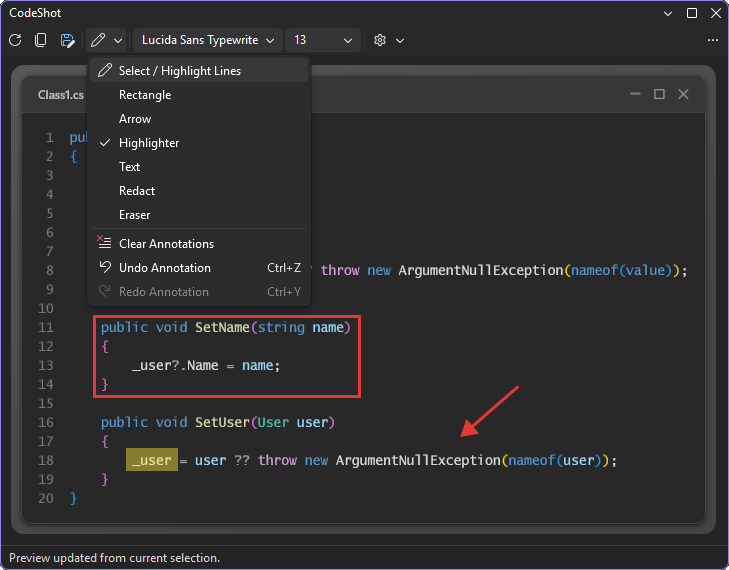
Capturing a tool window is a different problem
Text reconstruction works well for editor selections, but it cannot capture Error List, Test Explorer, Solution Explorer, or a tool window containing Win32 or WebView content. Those surfaces have to be captured from the pixels currently displayed.
CodeShot adds a command to Visual Studio's docked-window context menu through VSCT. When invoked, it uses IVsMonitorSelection to find the current IVsWindowFrame and IVsWindowFrame4.GetWindowScreenRect to obtain its screen coordinates.
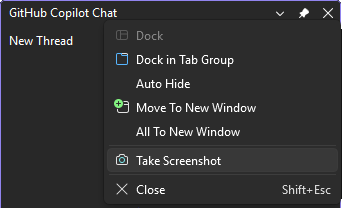
Finding the content rectangle is only the beginning. A docked group may contain sibling tabs, rounded shell chrome, transparent corners, and content rendered outside the WPF visual tree.
CodeShot combines several mechanisms:
- UI Automation locates the selected tab and its docking container.
- The WPF visual tree supplies a mask for the rounded Visual Studio frame.
Graphics.CopyFromScreencaptures the actual visible pixels, including Win32 and WebView content.- The mask removes sibling tabs and leaves pixels outside the rounded frame transparent.
Because UI Automation runs away from the UI thread, the target can change while its geometry is being inspected. Before copying pixels, CodeShot verifies that the selected COM frame, bounds, root window, and visibility still match the original target. Captures are serialized with a SemaphoreSlim so two commands cannot race over transient shell state.
This design has an honest constraint: pixel capture can only reproduce what is visible. The target must remain unobscured. That tradeoff is preferable to pretending every Visual Studio surface can be rendered reliably through WPF.
Menus and modal dialogs complicate threading
Menus, context menus, cascading flyouts, and modal dialogs are even more temporary. CodeShot starts a five-second countdown so the user can open the desired surface, then performs discovery and capture off the Visual Studio UI thread.
That last part matters for modal dialogs. A modal WPF or Windows Forms dialog owns the UI thread while it is open. Resuming the delayed operation on that thread would postpone capture until the dialog had already closed.
The capture code examines the foreground window and the window under the pointer. UI Automation identifies visible menu items and expanded flyouts, while Win32 window enumeration finds native #32768 menu windows. DWM extended frame bounds are preferred when available so shadows and invisible borders do not become part of the result.
Let Visual Studio own the command experience
The tool window itself uses BaseToolWindow from the Community Visual Studio Toolkit, but its toolbar, menus, context-menu command, icons, and keyboard bindings are declared through VSCT.
The tool window's persistence GUID also acts as a command scope. Combined with ProvideKeyBindingTable, this allows familiar shortcuts such as Ctrl+C, Ctrl+S, Ctrl+Z, and Ctrl+Y to operate inside CodeShot without replacing their global Visual Studio behavior.
That is a broadly useful extension pattern: when a feature belongs to Visual Studio chrome, use Visual Studio commands and command scopes instead of recreating the experience with WPF buttons and global key handlers.
Small boundaries make the extension easier to maintain
The first version concentrated substantial behavior in the tool-window control. As the capture modes grew, reusable pieces were extracted for selection normalization, PNG encoding, file naming, atomic saving, font discovery, capture sizing, and bounded history.
Those boundaries also made the non-Visual Studio portions testable with ordinary MSTest tests. Visual Studio integration remains in the package and capture layers, while geometry, naming, indentation, and state transitions can be exercised without launching an experimental instance.
The main lesson from CodeShot is that image encoding is the easy part. A Visual Studio extension like this lives at the boundaries between editor snapshots, MEF services, WPF layout, COM frames, UI Automation, Win32 windows, the clipboard, and the shell's threading rules. Treating each boundary explicitly makes the workflow feel simple even when the implementation is not.
You can install CodeShot from the Visual Studio Marketplace or inspect the complete implementation in the GitHub repository.
Comments
What did you think?